Showing posts with label Technology. Show all posts

Thursday, September 25, 2014

Teach Procedural Writing Using "Pic Collage" & iPad Mini GIVEAWAY!!

My friends over at the Lesson Deli and I are throwing an AMAZING GIVEAWAY!! We have each blogged about our fav iPad apps... and... get this... we are giving away an iPad Mini! Woo hooo! This is SO EXCITING!!

But first, let me tell you a bit about an app that gets A LOT of use in my classroom: Pic Collage.

Kids love taking pictures and turning them into collages, am I right? Sooo, why not take that love and link it with some learning?!  That's what we do over in room 222... and let me tell you... it takes engagement to a WHOLE new level.


I have used Pic Collage in a dozen ways with my students... and funnily enough I have never actually used it for creating collages. Ha!

The layout options offered in this app make it really easy to get kids creating various media texts such as brochures, fliers, menus, posters, comics... and more. This is what I love most about the app...its versatility. I'm sure the app creator just wanted to give kids a fun way to design collages, but if you think outside the box, you can easily adapt this app to teach just about any subject! Another great feature? It's super easy to use, making it great for kiddos in ANY grade!


For this post, I will focus on how I use Pic Collage to teach procedural writing.  Using this app to teach procedural writing was inspired by a student I had last year who absolutely HATED writing, BUT LOVED creating paper airplanes (and boy was he good at it!). Sooo... I thought... hmm... maybe I could get my kiddos to write a procedure on something they were passionate about and that they were an expert at (like building paper airplanes).  I wanted an app that was easy to use and would keep my students engaged. The results were amazing!  My class was focused and having fun while writing!  They especially enjoyed taking pictures of all the steps in their procedure!

Here's how it works:


 My students enjoyed bringing in their materials and taking pictures for their procedure, however, in some cases it was difficult for students to bring in certain objects (either because they were too big, valuable or fragile). In this case, using pictures from the web made it feasible for students to write about ANY topic they were passionate about!


I whipped up a quick example to show you how easy it is to use this app. Here's my procedure on "How to Bake a Cake".


Notice the search bar. Just type in what you need an image for, and voila, you have loads of images to choose from!  Alternatively, you can take your own pictures and easily select images from the camera roll.


If you make a mistake, its easy to drag and drop the images right where you need them. You can change the layout mid-way if you realize that you need to add more steps or that you prefer another layout.


Once the images are in place, students can type in their procedure! 


They can play around with the style, size and color of the fonts!

To teach your students about all the functions in the app, have them click on the question mark at the top.  This is what will pop up: 


NOW for your chance to WIN AN iPAD mini!!!
This giveaway is only open to teachers (classroom and homeschool) who are living in the United States or Canada. The winning entry will be verified and proof of eligibility may be required. 


Contest starts September 26th and ends September 29th.

Enter to win by following my store (around 10 choices down)! Follow my Lesson Deli pals as well to increase your chances of winning!! Good luck!


a Rafflecopter giveaway An InLinkz Link-up
<!-- end InLinkz script -

Thursday, August 21, 2014

Technology Thursday: QR Code Basics

QR codes are starting to pop up everywhere... they are even being added to classroom resources as a way to make learning a bit more engaging.
  They might seem a bit intimidating at first but they really are simple to use and create!

HOW TO SCAN A QR CODE:

STEP 1:  Download a QR reader onto your device.  The one I currently have is 


STEP 2: Scan the code. 

Tip: You need a steady hand while holding the item with a QR code on it.
 It might be easier to lay it on a flat surface.

I really like this app because it keeps track of all the QR codes you've scanned. 
Simply click on the history button (the clock type button next to the star).

You can also bookmark your favorite links!

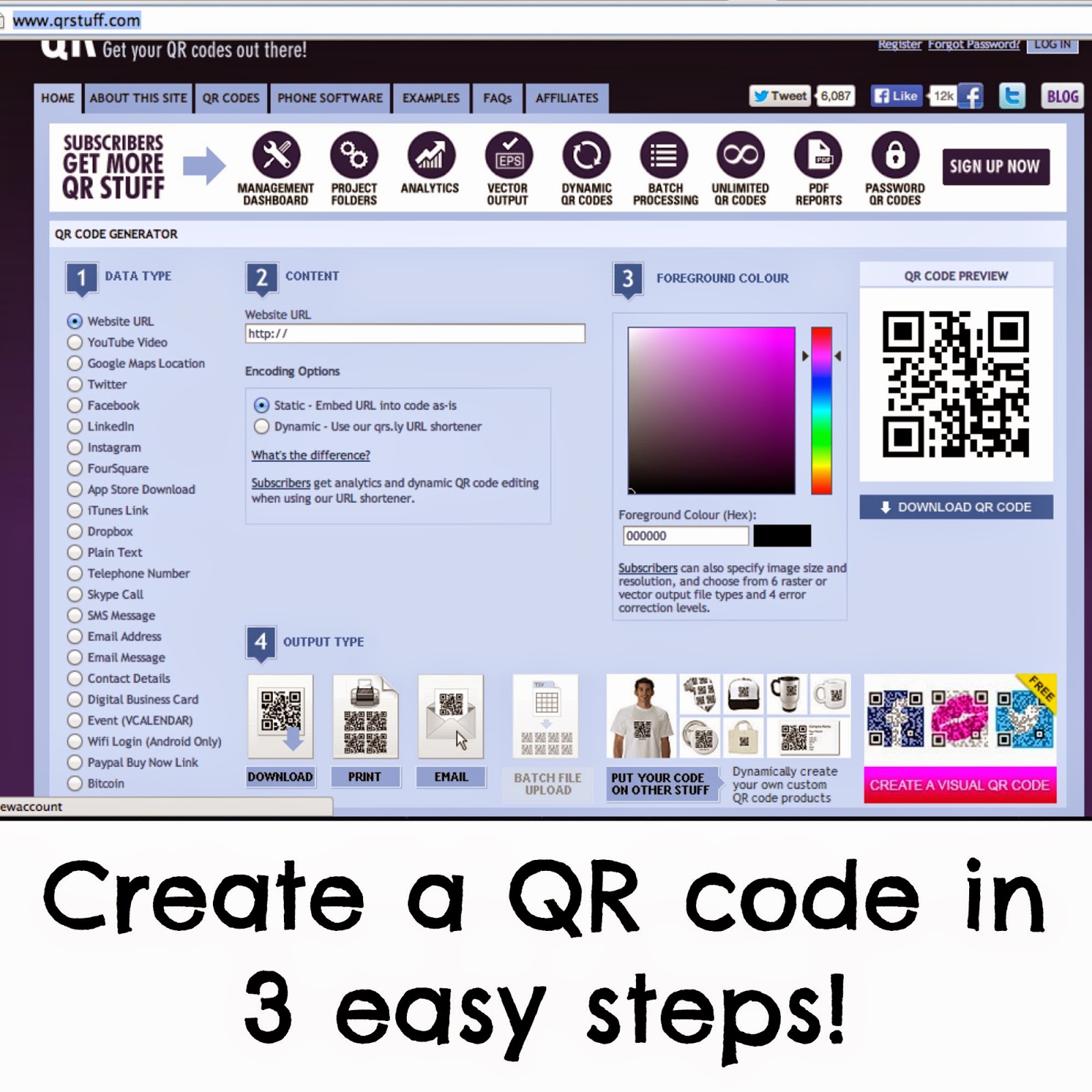
HOW TO CREATE A QR CODE:

It is SO simple. Seriously. If you can copy a link and press enter then you can create a QR code. I'm not kidding. (A lot of people are surprised when I tell them that it's really that easy!)

Before we start, get yourself onto a good 'QR code generating' website.  


STEP 1:  Decide what you want your QR code to link to. 
There are lots of options to choose from.

STEP 2: If you are linking to a website, just copy and paste the link.  
If you want the QR code to link to a page of text, simply copy and past the text. 
Whichever option you choose, this site will let you know what you need to provide (link, text, etc.)

STEP 3: Click 'Download QR code"

You could add a step in between and change the foreground color, but you really don't need to do this.

So there you have it. QR codes. Easy!

Now that you know how to scan and create QR codes, you might be wondering how this relates to the classroom... 
Check back for my next Tech Thursday post when I'll delve deeper into this.

Until next time, happy scanning!


Thursday, August 14, 2014

Technology Thursday: Speech App

I am thrilled to be linking up with Teaching Trio for Technology Thursday!

I am addicted to iPad apps and just love incorporating them into my lessons.

However, since I'm still on summer holidays and not really in "school mode" yet, I am going to focus on an app that I've been using with my son this summer. (By the way, I have a TON of great app/tech recommendations for teachers, so check back each Thursday for new ideas!)

At first glance, it might seem like the app I'm about to introduce is an unusual choice.  
Let's see... some reasons would include:

1. It is intended for patients with aphasia (a disorder that affects one's ability to process and use language). The most common cause of aphasia is stroke and it often occurs in older folks
2. It's not a game. You don't earn points. You would think that this app would be the last thing a child would want to "play" on their iPad.

It's a good thing that I have an open mind and an eye for effective teaching strategies (if I do say so myself!) otherwise I would have skipped right past this awesome app!

So let me begin by saying my son is 4... he does not have aphasia nor does he have any issues processing or using language.  BUT, I figured if this app is good enough for the elderly suffering from a pretty serious speech disorder... it would be perfect for teaching anyone with a speech issue (serious or not)!

Now, my son has an outstanding vocabulary and he enjoys telling stories!  All in all his language skills are advanced for his age. [You can check out this {previous post} to see what I mean].  But he is having some issues pronouncing certain blends.  Hubby has an Australian accent, so for the longest time, we couldn't figure out if this had something to do with our son dropping random consonants. For example, our boy will say mirra instead of mirror, which is fine (and pretty darn adorable), but I've noticed that there are other sounds he seems to have issues with... like his "s" blends. These blends can't be attributed to the accent... so I figured it was time to nip things in the bud.

I downloaded the app because the title made me think it would be a perfect fit for my son (it's called "Consonant Blends") AND it was free (yay for free apps!).  I was expecting a fun kids app that would teach blends using games with bright, engaging colors.

When the app started, I thought, oh dear...he's not going to want to do this.  


But I was wrong.  


My son happily flipped through the screens to practise new blends. It was a lot more engaging than having his mother repeat: "Look at my mouth. Look where I'm putting my tongue. Look carefully. Are you looking? Stop looking at the cat outside the window! LOOK at my MOUTH!!!". 

But, you put a random person's enlarged mouth on an app, and that's it, the kid blocks out the world and is focused on how she is modeling the sound. Fine, don't listen to your mother! Listen to this random lady instead! :'( (Hem hem... "rejected mother rant" over.)

I think, for my little man, being in control of how long he wants to spend on each blend is what makes this app so attractive. He can tap the screen if he wants to see and hear the sound being modeled again. He can choose to practice blends he's good at when he's tired of practicing the trickier ones.  He can interact with the app by swiping, tapping, listening, watching.  All of this is much more exciting than listening to his mother (*sniff*).  But hey, I am just relieved that he's so engaged when using this app... that it's working...and that he is happy to spend 5-7 minutes a day practising his blends. I am truly shocked at how well this app has worked out!

The lessons here: 

1. Try using apps that are intended for other purposes/audiences.  You might just discover an innovative approach to teaching an everyday concept. I think you'll be surprised!
2. Sometimes it's not all about games and high scores. I think kids are motivated by being in control. Having the freedom to choose what they learn and when, is very empowering. Being able to choose when to move on to trickier skills (ie. when the child feels ready) or being able to review skills that have already been mastered, allows a child to set his/her own pace. 
3. Although I was doing the exact same thing as the model in the app when trying to teach my son how to say certain blends, my son would never have been able to study the nuances of where to place his tongue or how to shape his mouth as clearly as the app demonstrates.  The third lesson then: Don't underestimate just how effective some of these seemingly 'simple' apps can be.  

If you have a student who is struggling with pronouncing blends correctly, try this app.  I noticed a huge improvement in my son and I highly recommend it! Within a week he was calling Pider Man, Spider Man and now we're moving on to changing 'fruck' (which can sometimes sound like something else) to truck!


Check out {this link} to learn about other speech and language apps!
Related Posts Plugin for WordPress, Blogger...